
Shared VPS Dedicated WP Professional WP Professional Plus
Your website's files are hosted on Pair Networks servers running either the FreeBSD or Ubuntu Linux operating systems. Both operating systems use UNIX file permissions to determine who can do what to each file.
Access Classes
File permissions are set on a file-by-file basis, and are set for each of three different access classes: user, group, and other:
- The owner of the file is called the user.
- People in the same group as the owner of the file comprise the group.
- Everyone else, including the web server, belongs to the other class.
You can set certain permissions for each of these access types. See the different permission types in the next section.
Permission Types
Files and directories can have three types of permissions: read, write, and execute:
- Someone with read permission may read the contents of a file, or list the contents of a directory.
- Someone with write permission may modify the contents of a file, including adding, changing, or deleting file contents. For directories, this means that someone with write permission may create or delete files within the directory.
- Someone with execute permission may run an executable file or access the contents of a directory.
Access Classes + Permission Type Examples
So, for example, you could give the user read, write, and execute permissions. This means that the creator of the file can do anything to that file. It can run it, read it, edit it, or even delete it.
Now let's say you want to give the entire internet the ability to view a file, which you might do if the file was a webpage file. So, you would give the other class permission to read the file. However, you do not give it permission to write or execute. This means that anyone on the internet can view the file, but they can't run it, edit it, or delete it.
Permissions Notation
You'll need to understand how permissions are expressed in order to understand what you are seeing when you view the permissions for a file. Setting permissions from the command line also requires an understanding of how permissions are expressed.
You will typically see permissions expressed in one of two ways: either using letters that stand for the terms read, write, and execute, or using a numeric value that indicates the combination of permissions for a file across each access class.
Using Letters to Express Permissions
Permissions may be expressed by a string of ten characters, like the following example, which the is permissions readout for a typical public_html directory:
drwx---r-x
The first position indicates the file type. In a web hosting context, this is typically a d for directory or a dash otherwise. The nine remaining positions indicate permissions for each of the three access classes. Of these remaining nine positions, the first three positions are for user, the next three are for group, and the last three are for other. The permissions themselves are expressed using letters, as follows:
- r for read
- w for write
- x for execute
- - for when a particular permission is not granted
Using Numbers to Express Permissions
To express permissions using numbers, a string of three numbers is used: the first number is for user, the second for group, and the third for other. The numbers used are based on the following values:
- 0 for no permissions
- 1 for execute
- 2 for write
- 4 for read
When an access class has more than one permission, the values for each permission are added together.
There are eight possible numbers used to express permissions:
- 0 for no permissions
- 1 for execute
- 2 for write
- 3 for execute and write
- 4 for read
- 5 for execute and read
- 6 for write and read
- 7 for execute, write, and read
Using the Account Control Center to View and Set File Permissions
The Pair Networks Account Control Center ("ACC") has a built-in way to view and set file permissions. To access your files and set or view permissions, visit the File Management section of the ACC:
Choose the tutorial that reflects your ACC interface type:
- Legacy Interface
- New ACC Interface
Not sure what the difference is? See Which ACC Interface Am I Using?
If you are using the Legacy Interface:
- Log in to the ACC.
- In the left sidebar, click File
- In the drop-down click, Home or Web, depending on where your file is
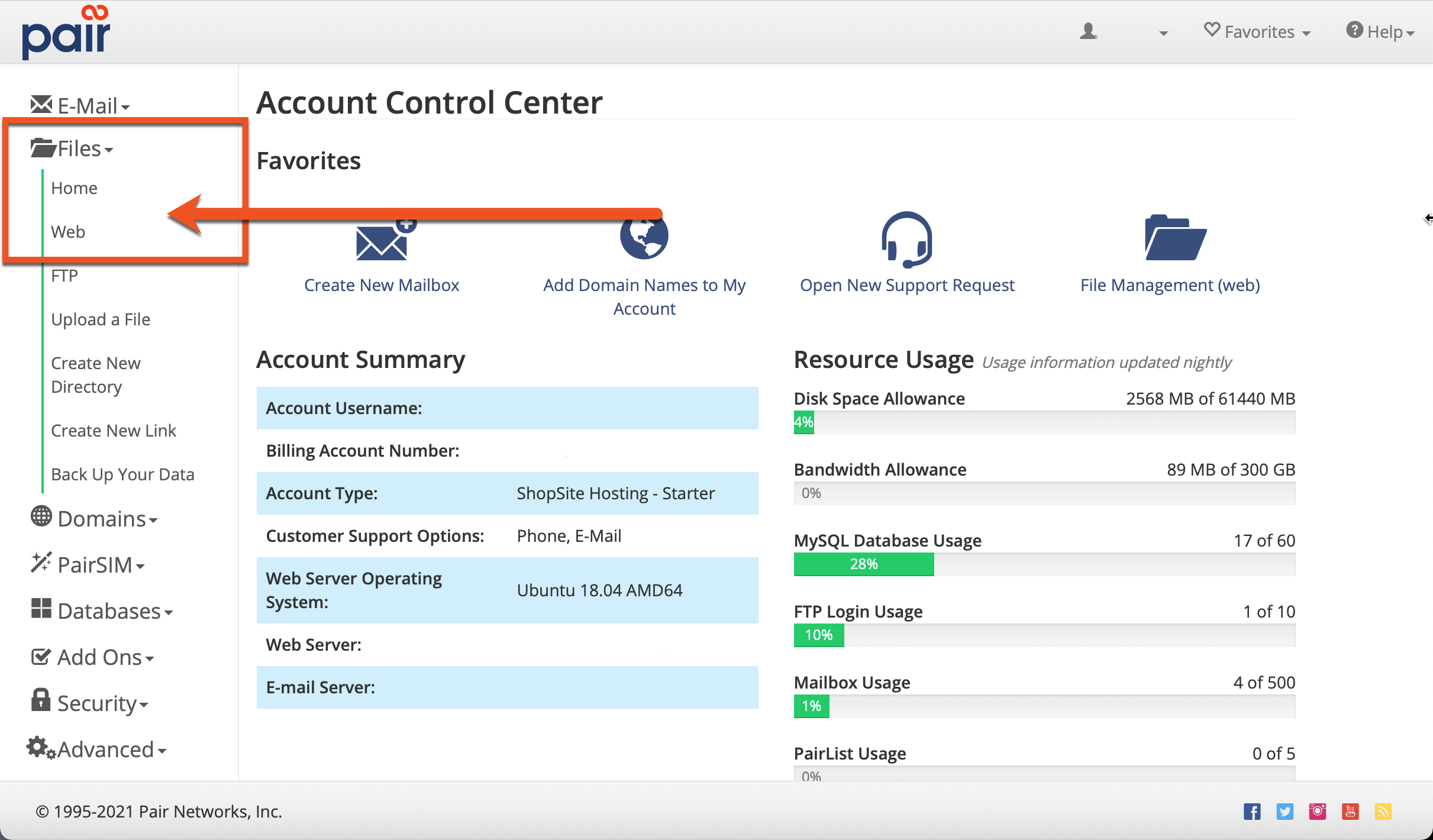
- Navigate to the file you wish to view the permissions for
- Then, look in the Permissions
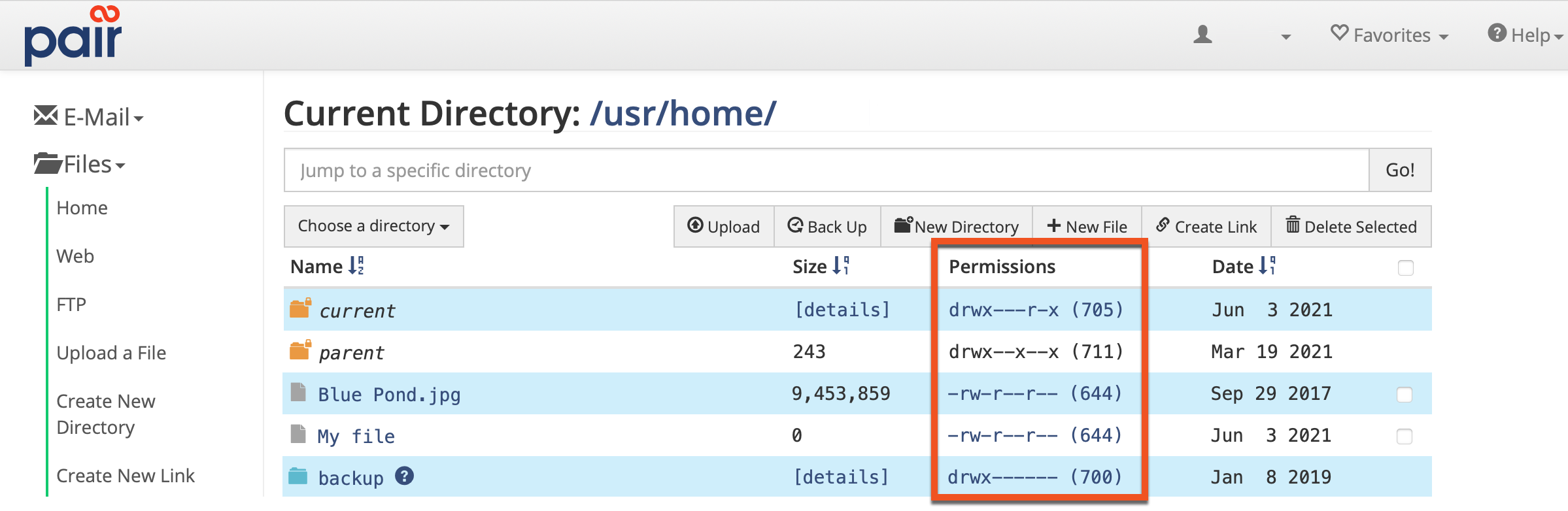
Permissions listed in this column will be expressed using letters.
If you are using the New ACC Interface:
- Log in to the Account Control Center (ACC) at my.pair.com
- In the top navigation bar, click Files
- Navigate to the file you wish to view the permissions for
- Use the Permissions column to view the permissions for the file or directory

Permissions listed in this column will be expressed using letters.
Setting File Permissions in the ACC
Choose the tutorial that reflects your ACC interface type:
- Legacy Interface
- New ACC Interface
Not sure what the difference is? See Which ACC Interface Am I Using?
If you are using the Legacy Interface:
In the File section of the ACC, click on the permissions of the file you would like to change permissions for.
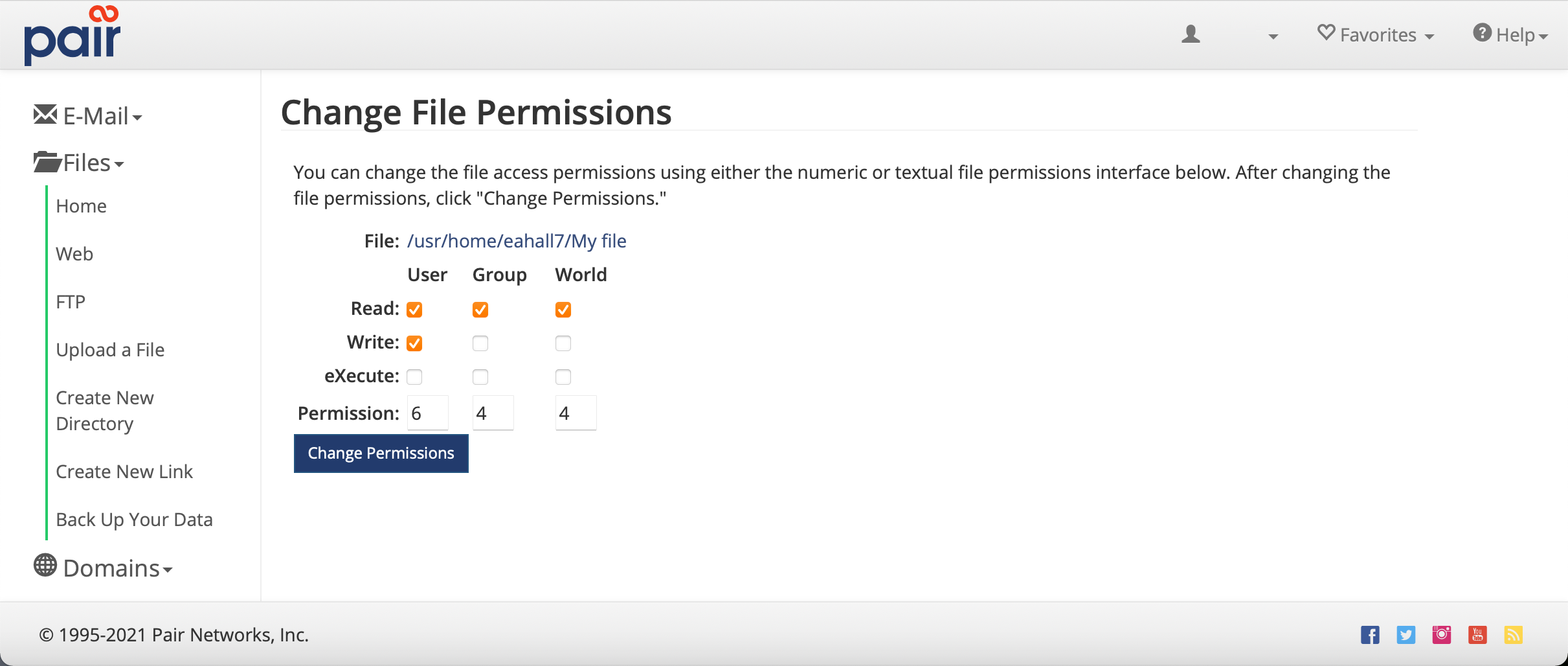
You can change permissions by checking which permissions to add or remove, or you can enter the permissions using numerical notation. When finished, be sure to click the Change Permissions button to save your changes.
If you are using the New ACC Interface:
To set file permissions on a file in the Account Control Center:
- Find the file in the ACC’s file management system
- Click the file's Action button
- In the drop-down, click the Change Permissions option
- Toggle the option for each desired permission or enter their numerical value in the Permission fields. See numerical notation.
- Click the Change Permissions button

Viewing and Setting Permissions from the Command Line
If you're using SSH to connect to your hosting server, you can use the chmod command to view and set file permissions.
Viewing File Permissions from the Command Line
To view permissions from the command line, navigate to the directory containing the files and directories that you want to view permissions for. From this directory, use the ls command with the -l option,
This will generate output like the following:
wxr-xr-x 3 user group 102 May 8 11:12 Public_HTML
The first column in the ls output shows permissions using letter notation.
Setting File Permissions from the Commmand Line
Permissions are set from the command line using the chmod command. You can use chmod with either numeric or letter notation.
Setting Permissions Using Numeric Notation
The syntax for using numerical notation is:
chmod [numeric permissions] [file]
chmod Numeric Notation Example:
Setting Permissions Using Letter Notation
The syntax for using letter notation is:
chmod [access class][operator][letter permission] file
Access classes are indicated using initials, as follows:
- u for user
- g for group
- o for other
- a for all three: user and group and other
The operators are the following:
- + to add a permission
- - to remove a permission
- = to set a permission
The permission types being manipulated are indicated using letter notation as described above.
chmod Numeric Notation Example:
You can learn more about the chmod by entering man chmod from the command line.