
Microsoft Outlook is available in two versions: Classic Outlook and New Outlook. Both handle email, calendars, and contacts, but the layout and available features differ. This article explains the differences and shows you how to tell which version you’re using.
What is Classic Outlook?
Classic Outlook is a long-standing desktop version of Outlook that comes with Microsoft Office and Microsoft 365. The layout looks more like older versions of Microsoft Office, with more buttons and menus visible by default. This is the version most long term users are familiar with.
See Microsoft’s plans for Classic Outlook here: Outlook Blog
What is New Outlook?
The New Outlook (sometimes referred to as “Outlook for Windows,” though it is also available on Mac) is Microsoft’s modern, streamlined version of the application. It has a simplified design that matches Outlook on the web and focuses on speed, better Office 365 integration, and security. While it doesn’t yet include every feature from Classic Outlook, Microsoft continues to expand its capabilities.
You can see a full feature comparison list here: Microsoft Feature Comparison List
How to Tell Which Outlook You’re Using
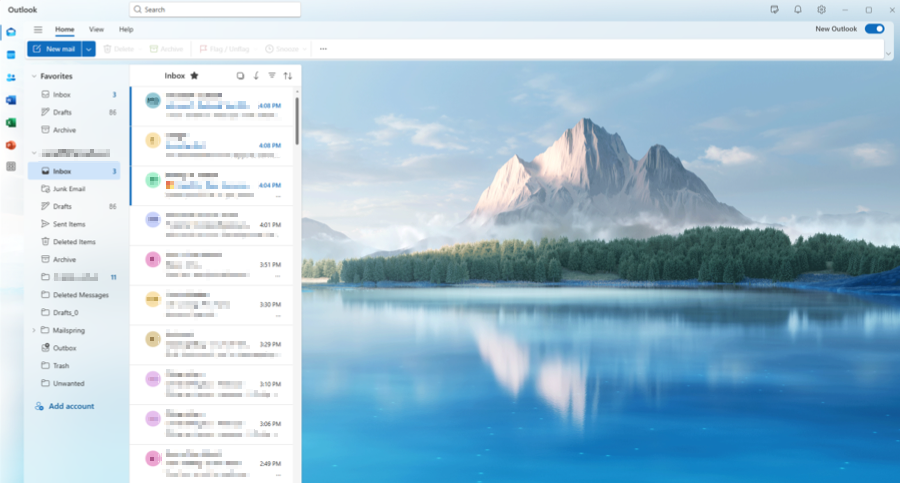
The quickest way to tell whether you’re using Classic Outlook or the New Outlook is by looking at the interface. The toolbar, layout, and available toggles are slightly different between the two versions. Below we’ve included screenshots of each interface layout on both Windows and Mac so you can easily identify your version.
Windows Desktop
Classic Outlook on Windows 11

New Outlook on Windows 11
Mac Desktop
Classic Outlook on Mac

New Outlook on Mac

Switching Between New and Classic Outlook
You can move between Classic Outlook and the New Outlook from within the application. The process is quick, but the steps may vary depending on whether you’re using Windows or Mac. Follow the instructions below for your device.
Switch from Classic Outlook → New Outlook (Windows 11)
- Open Classic Outlook
- In the upper right corner, toggle on the Try the new Outlook option
Note: a pop-up may appear while Outlook downloads the new version. - A pop-up will appear. Click the Switch button
Classic Outlook will close and open the New Outlook version.
Switch from Classic Outlook → New Outlook (Mac)
- Open Classic Outlook
- In the upper right corner, toggle off the Legacy Outlook option
- A pop-up will appear. Click the Switch to Outlook button
Classic Outlook will close and open the New Outlook version.
Switch from New Outlook → Classic Outlook (Windows 11)
- Open New Outlook
- In the upper right corner, toggle off the New Outlook option
- A pop-up will appear. Select Switch back to classic Outlook
- Click the Continue button
Note: a pop-up may appear requesting your feedback. Complete the form or click the Skip Feedback option to continue.
New Outlook will close and open the Classic Outlook version.
Switch from New Outlook → Classic Outlook (Mac)
- Open New Outlook
- In your Mac’s top toolbar, click the Outlook option
- In the drop-down, click the Legacy Outlook option
- A pop-up will appear. Click the Revert button
New Outlook will close and open the Classic Outlook version.
Troubleshooting:
Can’t find the toggle? This could be caused by a few reasons:
- Non-subscription versions of Office (such as Office 2019 or 2021) do not have a toggle. On Windows, you’ll need to install the New Outlook separately from the Microsoft Store.
- On organization-managed devices, IT administrators may disable the toggle. If you do not see the option, check with your IT team.
- Some email account types are not yet supported in the New Outlook. If your account isn’t compatible, the toggle will not appear.
- You may be using an incompatible version of Windows or Mac. New Outlook requires Windows 10, Build 1809 (17763) or macOS version 10.14 (Mojave) and later.
- Microsoft is gradually transitioning users to the New Outlook experience. In some environments, the option to switch back to Classic Outlook may be limited or removed in the future.
For more troubleshooting help, see Resolve deployment issues in the new Outlook for Windows.